
RegAI Docs › Workspaces and documents
Workspaces
Workspaces keep chats and documents apart: one workspace per matter, client or practice area works well. Chats and documents in different workspaces don't mix: when RegAI answers, it reads only the documents you added to the query in the current workspace.
Workspaces need you to sign in. How many workspaces you can have depends on your plan; see Pricing.
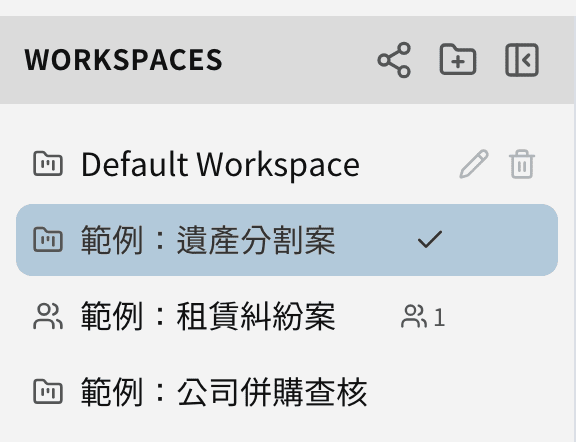
Your default workspace
The first time you sign in, RegAI creates a default workspace for you. It can't be renamed or deleted.
Create and switch workspaces
- Next to Workspaces in the sidebar, click the New workspace icon .
- Enter a name, for example "Estate partition – client X".
- Click a workspace in the sidebar to switch to it; the current one has a tick.
After switching, Chats and Documents show only that workspace's content.
Rename and delete
Hover over a workspace's name and click Rename or Delete.
Note: deleting a workspace also deletes all its chats and documents, and can't be undone. Download any files you want to keep first, and export RegAI Editor documents to Word.
The sidebar
- Collapse sidebar hides it to give the chat more room; Show workspaces at the top opens it again. Drag its edge to change its width.
- On a phone, Show workspaces at the top opens the workspace panel.
Sharing with others
RegAI Pro members can share a workspace with other RegAI Pro members and use it together. See Groups.