
RegAI Docs › MCP
API keys and connected apps
Sign-in requiredLast updated: 2026-11-06
Assistants connected by sign-in need no key. You only need an API key for an assistant that doesn't support sign-in.
Create an API key
- Open the account menu at the top right and choose Account settings.
- Under API key, click Create key and confirm.
- Click Copy and paste the key into your assistant's MCP settings.
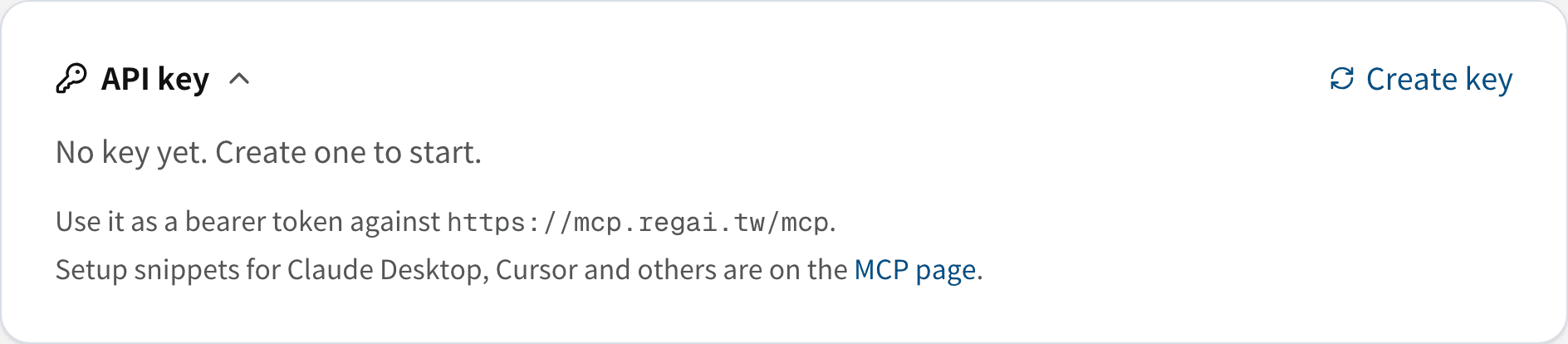
An account has one key at a time. You can come back to this page and click Reveal key to see it again.
Use the key in your assistant
- If the assistant lets you set headers (recommended): add
Authorization: Bearer YOUR_KEY. - If it only takes a URL: append
?key=YOUR_KEYto the server address, for examplehttps://mcp.regai.tw/mcp?key=YOUR_KEY.
Where each assistant keeps these settings is on the RegAI MCP page.
Note: anyone with your key can use your account's MCP allowance. Don't share it or paste it anywhere public. For how keys are protected and logged, see Security.
Rotate or revoke the key
- Rotate: creates a new key; the current one stops working at once. Rotate straight away if a key may have leaked.
- Revoke: the key stops working at once, and assistants using it can no longer look things up.
Connected apps
Assistants connected by sign-in are listed under Connected apps in Account settings, with the date they connected and were last used.
Click Disconnect and that app loses access to RegAI MCP at once; to use it again, connect it by signing in again.
Was this page helpful?