
RegAI Docs › RegAI Editor
Comments
RegAI Pro featureLast updated: 2026-11-04
Add a comment
- Select the text to comment on.
- Click Comment in the toolbar, or press ⌘ ⌥ M (Windows: Ctrl Alt M).
- Write the comment and click Comment, or press ⌘ Enter.
The commented text is highlighted in yellow. A comment never becomes a suggestion, even with suggest mode on.
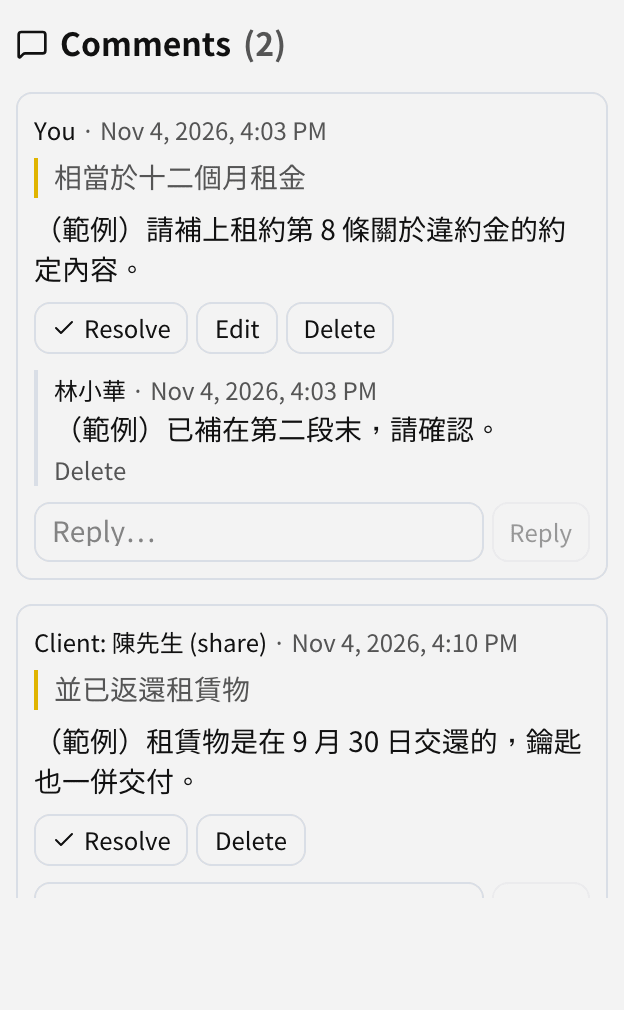
Reply, resolve, edit and delete
- Reply: type under the comment and press Enter.
- Resolve: click Resolve; the highlight goes and the comment moves under Resolved comments. Reopen brings it back.
- Edit, delete: you can edit and delete your own comments and replies. A Group's Owner can delete any comment.
Click highlighted text to open its comment; click a comment to select its text.
When commented text changes
A comment stays when its text is edited; when the text is deleted, the comment shows Text deleted.
Comments from clients
When you share with a client and allow comments, their comments appear under Comments as "Client: name (share)". Only that client sees your replies.
Export and import
Exporting as Word, with suggestions as tracked changes includes comments and replies; resolved comments are marked done in Word. Creating a document from a Word file with comments brings the comments in.
Was this page helpful?