
RegAI Docs › RegAI Editor
Export and import Word
Export to Word
Click Export at the top and choose one:
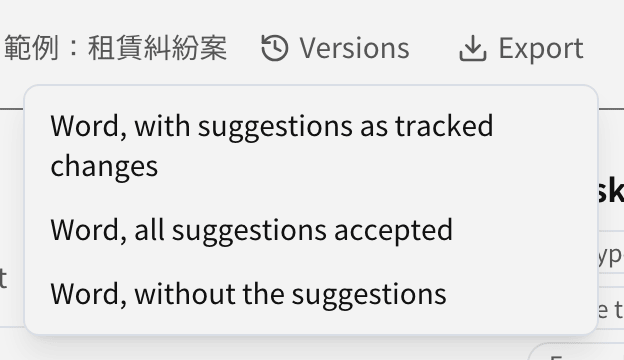
| Option | What you get |
|---|---|
| Word, with suggestions as tracked changes | Suggestions become Word tracked changes, with their authors and times; RegAI's reasons and the comments become Word comments |
| Word, all suggestions accepted | A clean copy with every suggestion accepted, no comments |
| Word, without the suggestions | The original with every suggestion rejected, no comments |
The tracked file's name ends in "(tracked changes)", the original's in "(original)". Accept All or Reject All in Word gives the same text as in RegAI Editor.
Exported files use 標楷體 for Chinese and Times New Roman for Latin letters and numbers.
Show 標楷體 in Word for Mac
If Word for Mac shows the exported text in 新細明體 or another font, it is because Word for Mac cannot use the 標楷體 that comes with macOS. Click Mac 標楷體 at the top and follow the steps once; afterwards every Word file that uses 標楷體 displays correctly.
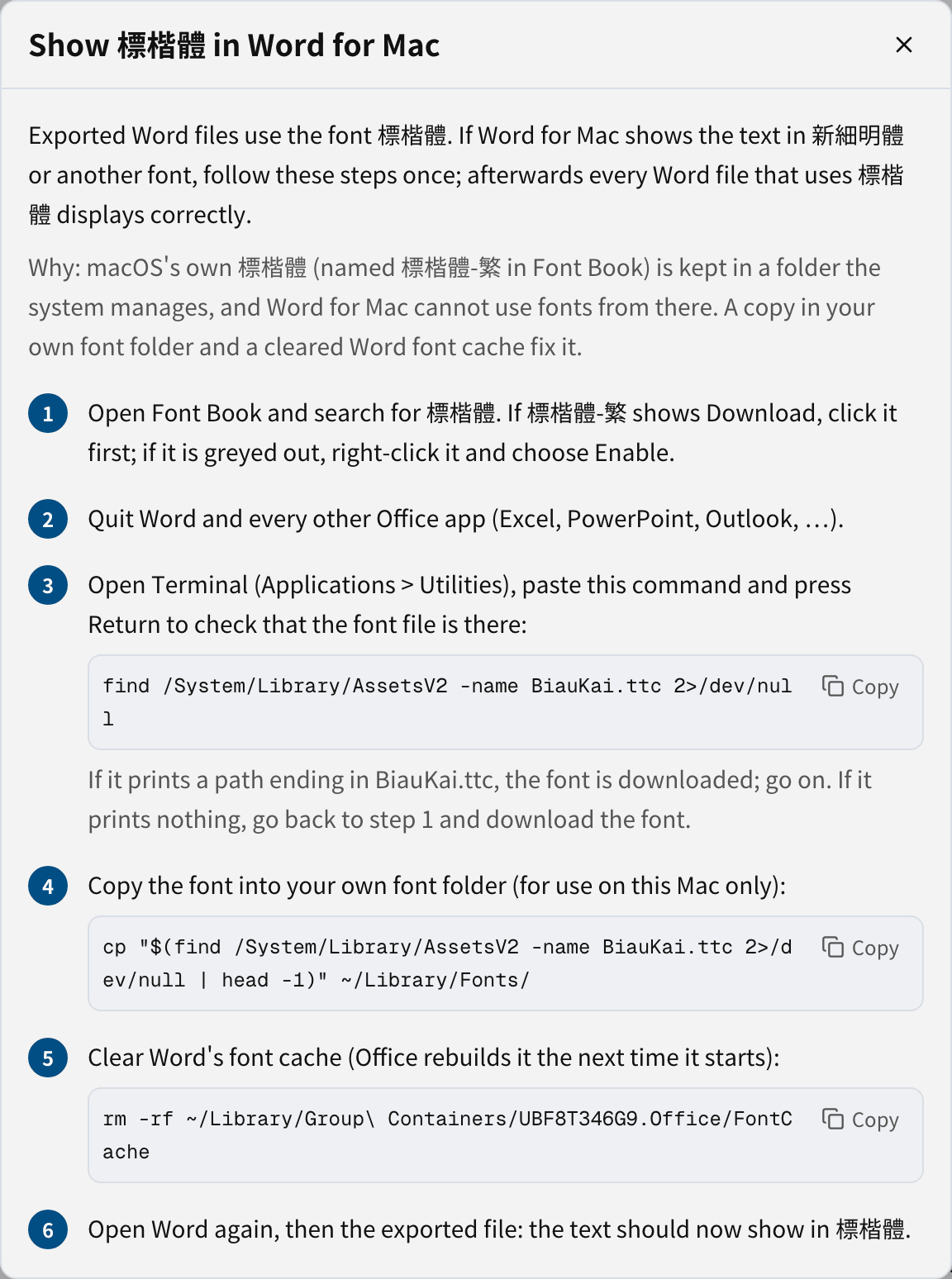
In short: download 標楷體-繁 in Font Book, quit every Office app, paste the commands shown into Terminal to copy the font into your own font folder and clear Word's font cache, then open Word again. The dialog also explains how to undo it.
Create a document from a Word file
See Create a document. Tracked changes and comments in the Word file come in too, and export again as tracked changes under the same authors.