
RegAI Docs › Getting started
Signing in and your account
Sign-in requiredLast updated: 2026-11-05
RegAI has no passwords. You sign in with a one-time code sent to your email, with Google or with LINE. The first time you sign in, an account is created for you automatically; no credit card is needed.
Sign in with email
- Click Sign in at the top right.
- Enter your email and click Send code.
- Find the 6-digit code in your inbox (valid for 10 minutes), enter it and click Verify & continue.
If no email arrives, check your spam folder, or click Resend.
Sign in with Google or LINE
On the sign-in page, click Sign in with Google or Log in with LINE and follow the steps on screen.
- Google: if your Google account's email already has a RegAI account, you are signed in to that account and Google is added as a log in method.
- LINE: if your LINE account isn't connected to any RegAI account yet, logging in with LINE creates an account with LINE as its only log in method, and Account settings shows Email not verified. We recommend adding an email later, for receipts and notices.
- If one LINE account is connected to several RegAI accounts, you are asked to Choose an account when you log in.
Add or remove log in methods
- Open the account menu at the top right and choose Account settings.
- Under Log in method, click Add email, Connect Google or Connect LINE, or Remove next to a connected one.
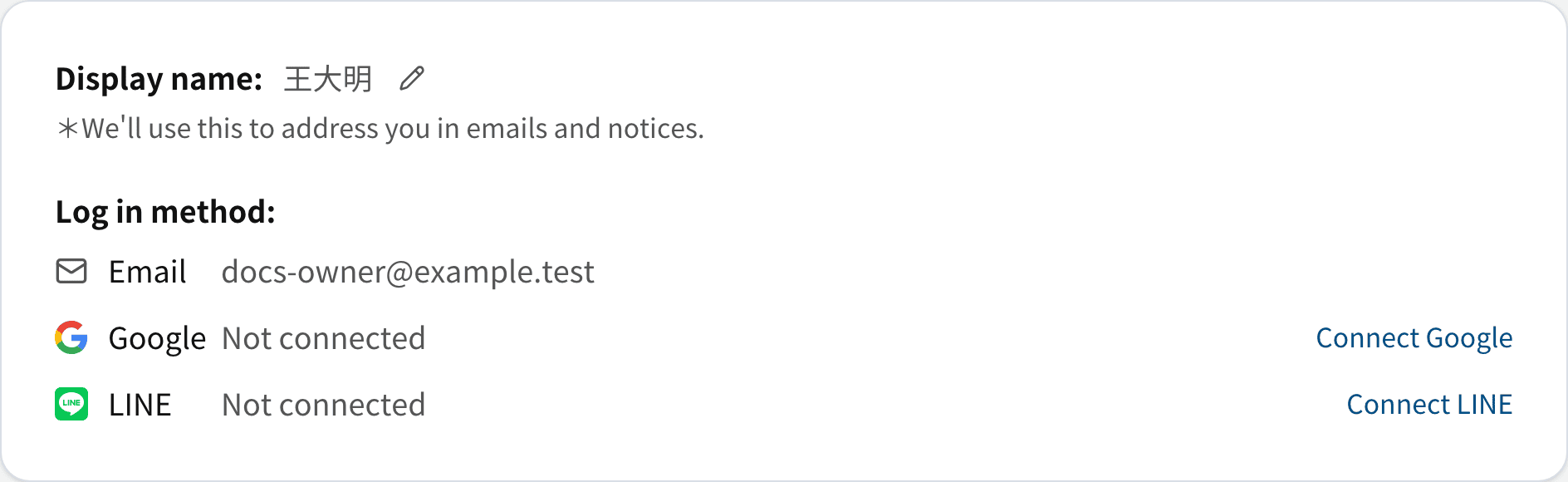
- Your email is your account's identity: one email belongs to one RegAI account only, and once verified it can't be removed.
- An email that already belongs to another RegAI account can't be added to this one. Sign in to that account with that email instead.
- Google and LINE can be removed at any time, as long as the account keeps at least one log in method.
Note: whoever holds your LINE account can log in to every RegAI account connected to it. Keep your LINE account secure.
Sign out
Open the account menu at the top right and choose Sign out.
Delete your account
See Account and billing. How your data is handled: see the Privacy Policy.
Was this page helpful?