
RegAI Docs › Groups
Remove Members, leave, delete
RegAI Pro featureLast updated: 2026-11-04
See Members and the activity log (Owner)
On the Groups page, click the Group's name. The page lists:
- Members: the Owner and every Member.
- Pending invitations: invitations not yet accepted, with the date they expire.
- Activity log: invitations sent or withdrawn, invitations accepted, Members removed or left, documents uploaded, suspended and resumed.
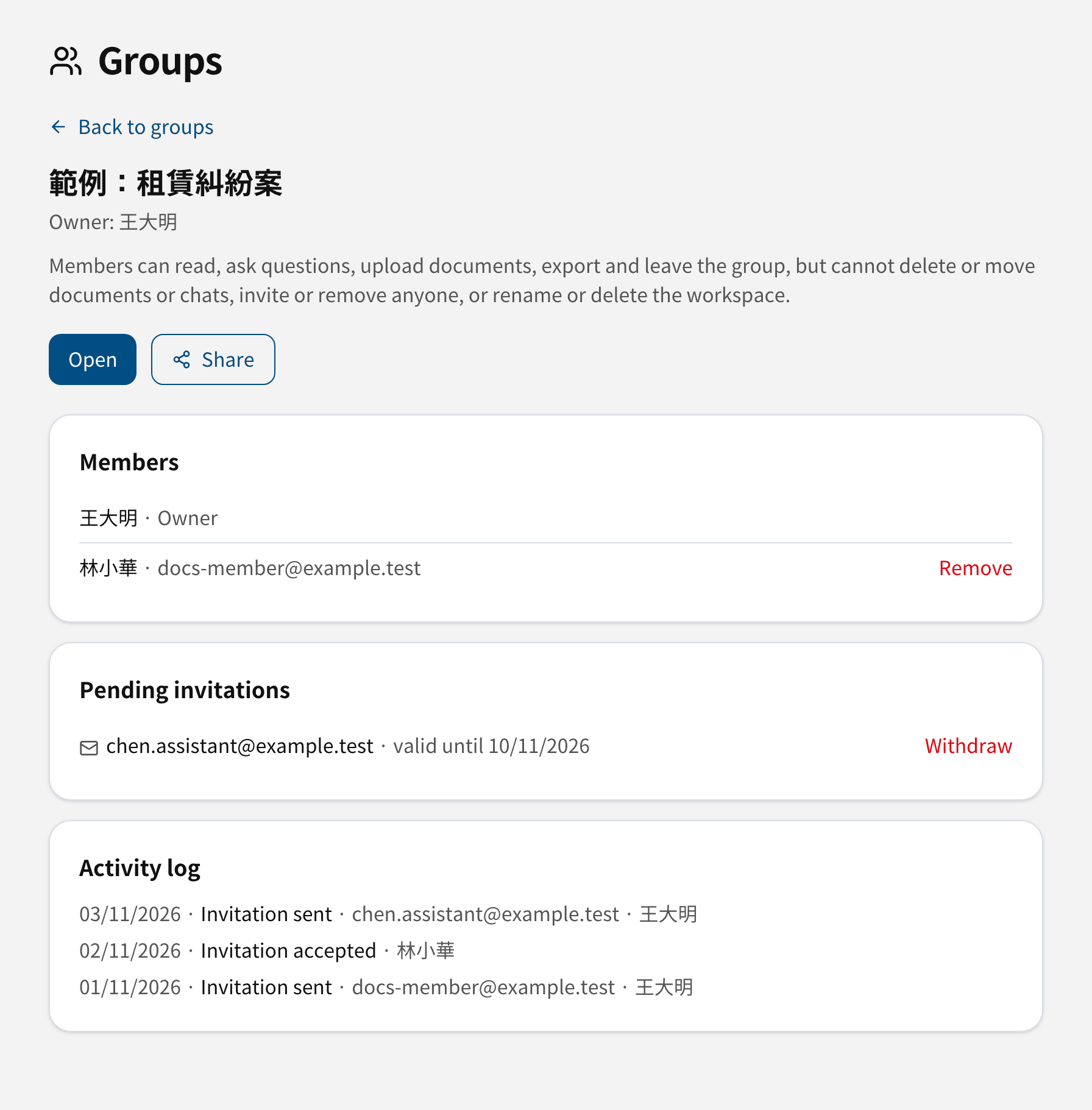
Remove a Member (Owner)
- On the Group page, click Remove next to the Member.
- Confirm with Remove.
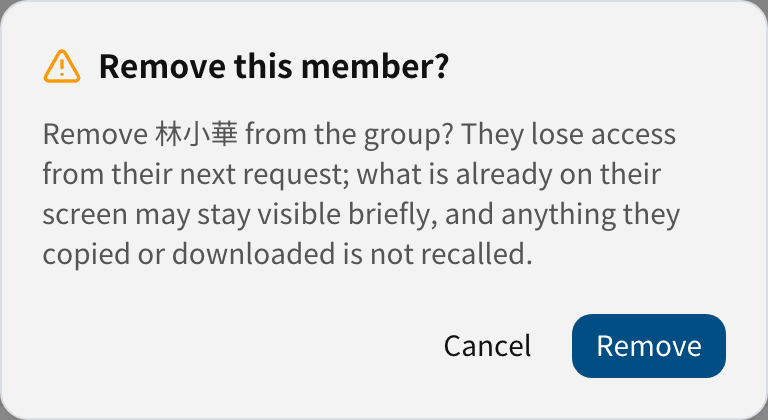
They lose access from their next action. Note that:
- What is already on their screen may stay visible briefly.
- Anything they copied, exported or downloaded is not recalled.
- What they wrote or uploaded stays in the Group.
Leave a Group (Member)
- On the Groups page, click the Group's name under Groups shared with me.
- Click Leave group and confirm.
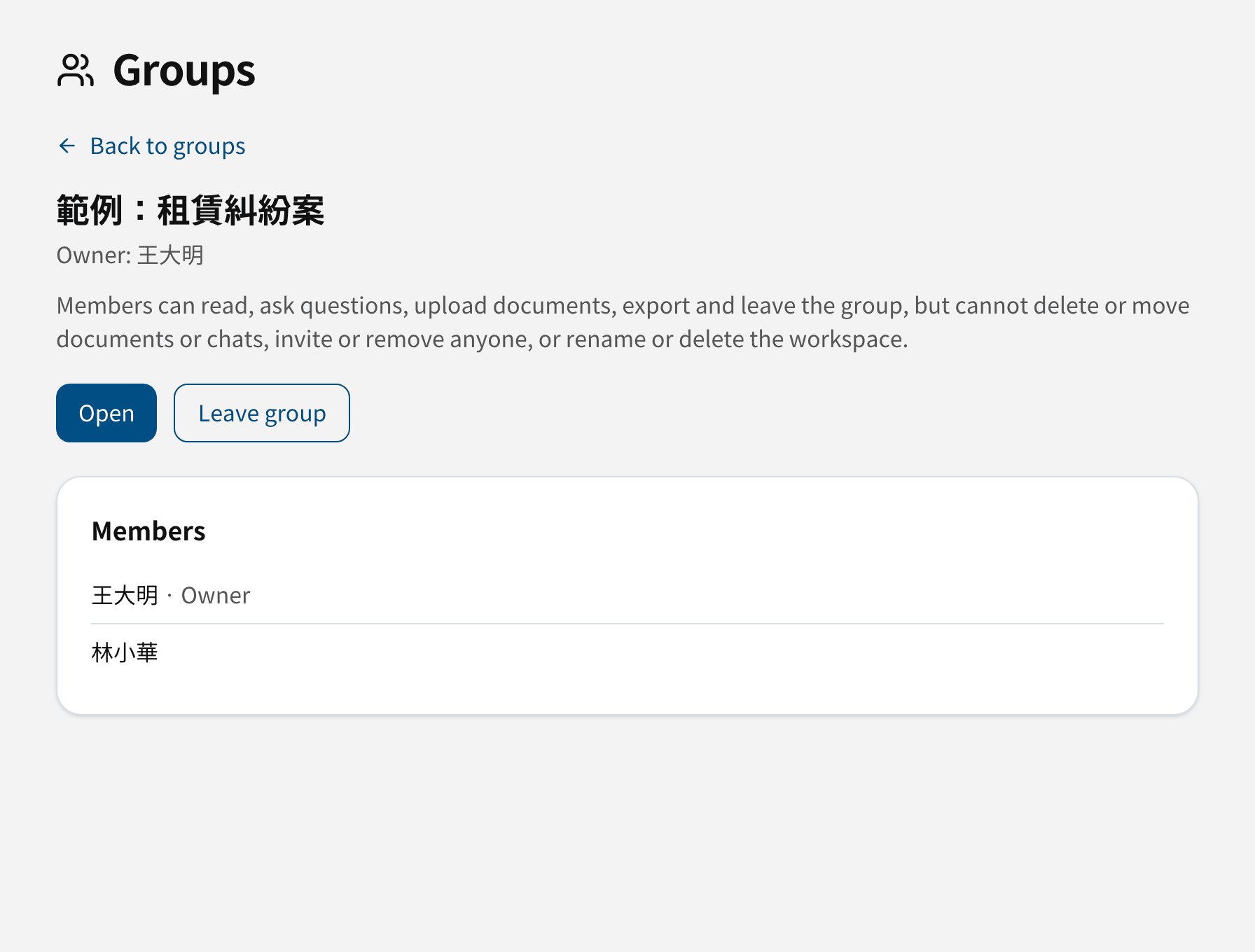
After you leave, what you wrote or uploaded stays in the Group. To have some of it deleted, contact the Owner.
Stop sharing or delete a Group (Owner)
Once you have removed every Member and withdrawn every invitation, the workspace is yours alone again; its content is not affected.
If you delete a chat, the workspace or your account, the chats and documents concerned are deleted, and no Member can access them any longer. Before deleting, check whether a Member still needs them.
When a Member deletes their account
Their membership ends, but what they wrote stays in the Group, labelled as a former member.
Was this page helpful?